
So while looking around for alternatives to Rogers Cable and Bell TV, and after having tried out the Satellite dish hacks awhile back, a friend pointed me to XBMC (X Box Media Center)
First, i tried it out on my cell phone. I downloaded it off the Google play store.
I looked up a couple instructions for what add-ons to get, and how to deal with add ons for XBMC.
The first one I went with was XBMC Hub.
Within a few minutes I was watching a movie on my Cell phone, streamed from some unknown source through the graces of peer to peer streaming.
I struggled with some ideas as to how to get this on my TV. Samsung doesn’t open up their TVs to just any apps.. and there are none for free streaming.
I could just use the output from my laptop running XBMC, and plug that into the TV.. but that means plugging in a laptop everytime.
The TV accesses network sources and media centers running remotely.. but only as a file share – not for streaming (ie. no files exist on the cell phone or laptop when watching a streamed movie). So that won’t work either.
There is also Miracast.. .Where my tablet or cell phone could have it’s screen being streamed to the TV as a mirrored copy.. But my TV doesn’t have Miracast so I’d have to buy a Dongle for that.. and I’m not a fan of having to keep the device on the whole time (it’s a true mirror, so you can’t even let the device sleep)
Then I happened upon Raspberry Pi devices. It’s a mini computer really, for around 45$. It has basically nothing but a processor, ethernet cable, HDMI output, micro USB power input, 2 USB ports, SD card slot that it boots from, analogue sound output, and RCA video out.
The more I looked into this little thing, the more interesting gadgets and things people made with it.
But the one I was most interested in, was using the operating system based on Linux, called Raspbmc. Its basically an operating system dedicated to XBMC.
So hook the TV’s USB cord to the power input, the HDMI from the Pi to the TV, and an ethernet cable to the Pi. The TV can then run off the XBMC program, and you can stream direct to the TV though HDMI.
I decided to go out and grab one, and just see if I’d be able to do it without buying anything else.
I knew I didn’t have any 4GB SD cards though.. and I decided to spring an extra 5$ on top of the cost of buying one, to have the place pre load the card with NOOBS.
NOOBS is a simple boot up program that allows you to choose the OS you want to install.. and allows for easy replacement later if you wish.
So I came home.. First challenge – powering the Pi. I hadn’t realized it was a micro USB.. I had a larger version. But then I found that my cell phone charger had the same size (I have a Samsung Google Nexus).
I had a short HDMI to plug into the TV.. And I already had an Ethernet cable hooked up to my TV – i just swapped it into the pi.
I also had an audio plug i used for hooking up my sterio to my Ipod deck. I used this cable and plugged it into the analogue sound output on the Pi.
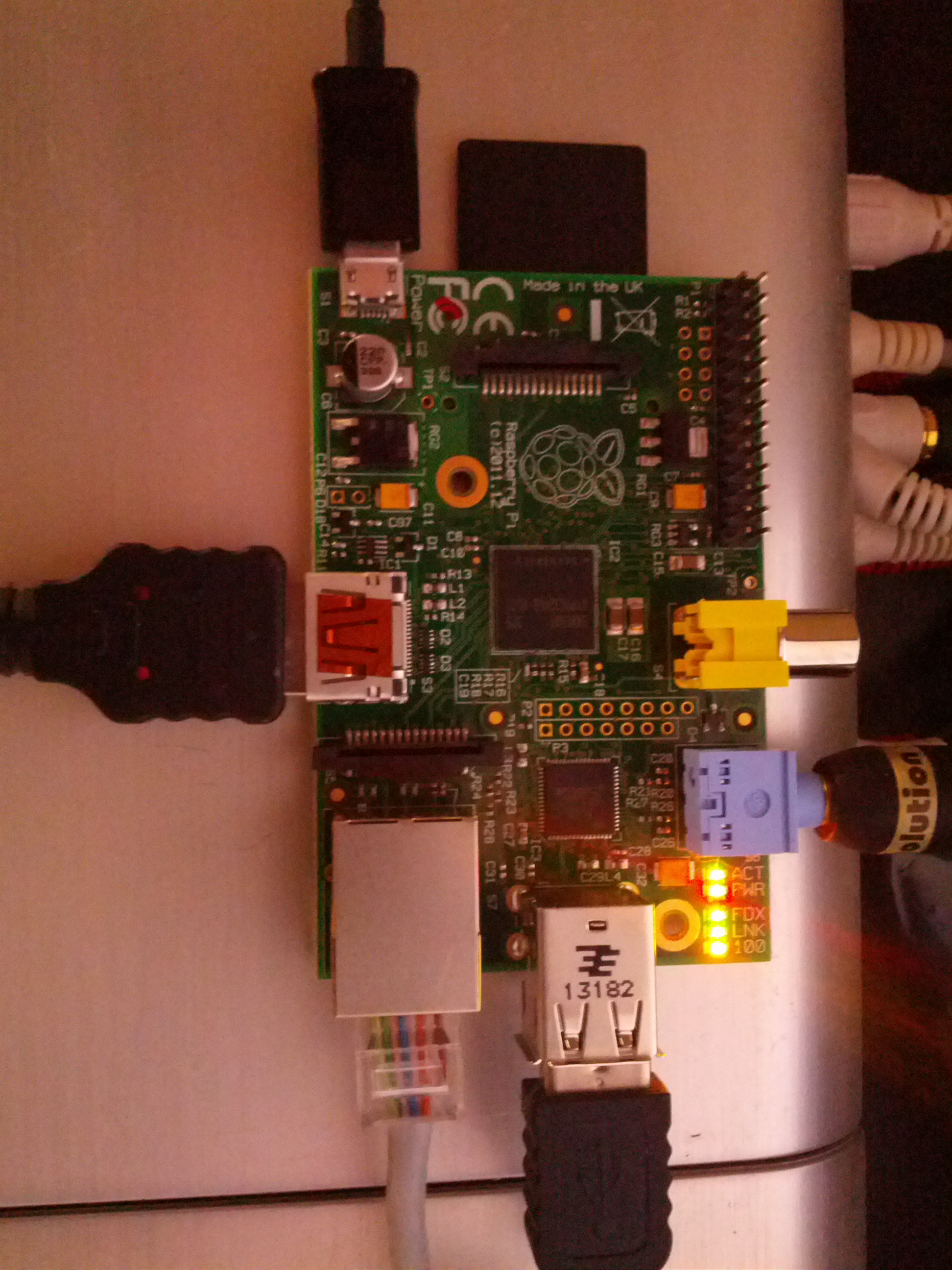
I decided to plug the power into the wall using the charger, rather then to the TV via USB to start.. just incase.
The boot up OS install option came up. However, I couldn’t control it yet. The TV remote wouldn’t work.. yet.. (I had read about HDMI CEC). I figured the OS had to be up and running first for that.
So hard as it is to believe, I was almost stuck there. I actually have no USB keyboards or mice. the last time I bought one of those it was still PC2 plugs!
As luck would have it, after racking my brains for awhile, I thought to check my client’s laptop bag they provided me (they often do, but I just use my own backpack). And low and behold, they provided me with a USB mouse. Nice!
So I plugged that into the USB port, and bingo, I was able to select Raspbmc as my OS to install.
I literally only needed the mouse for 2 clicks.
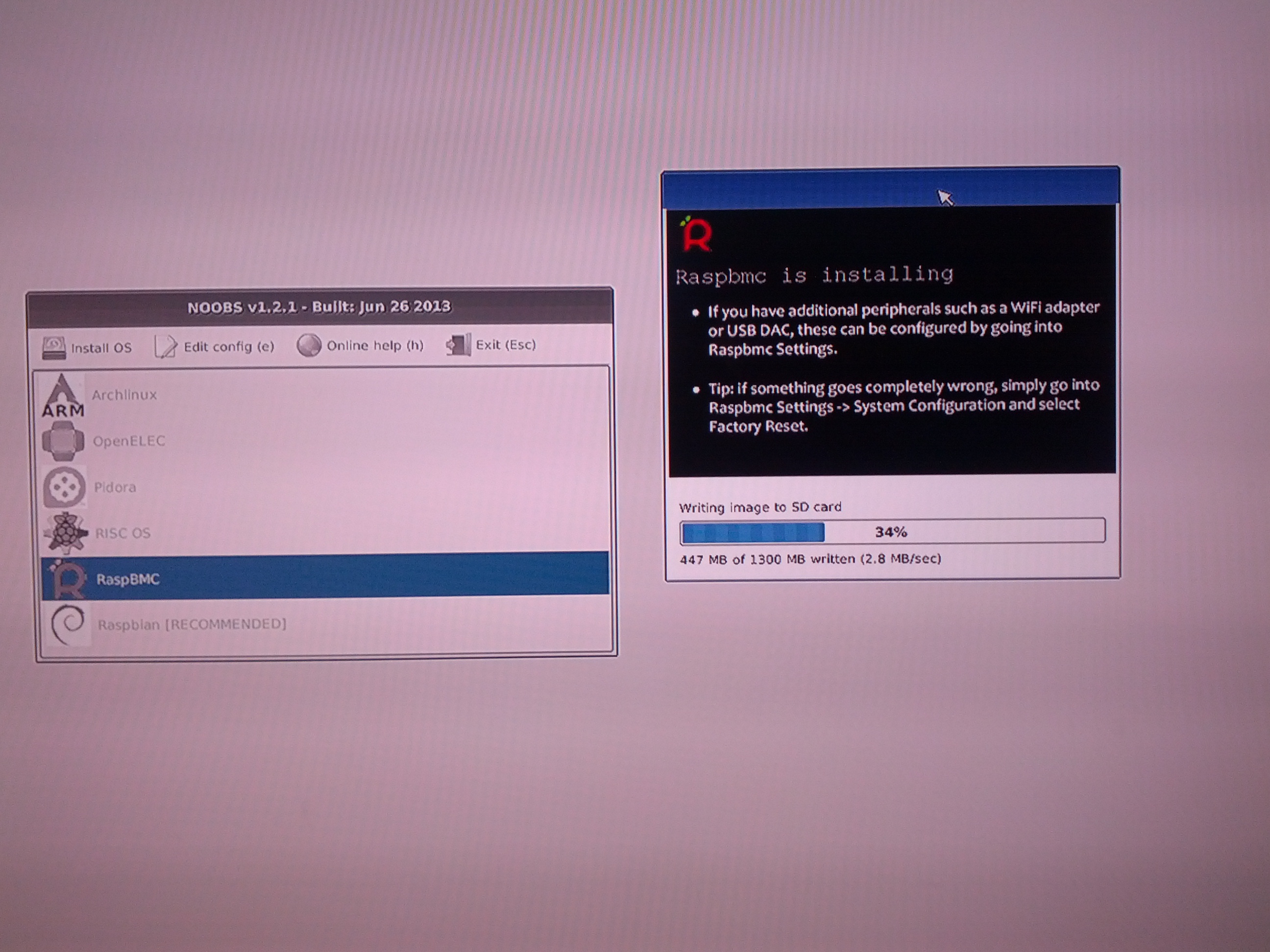
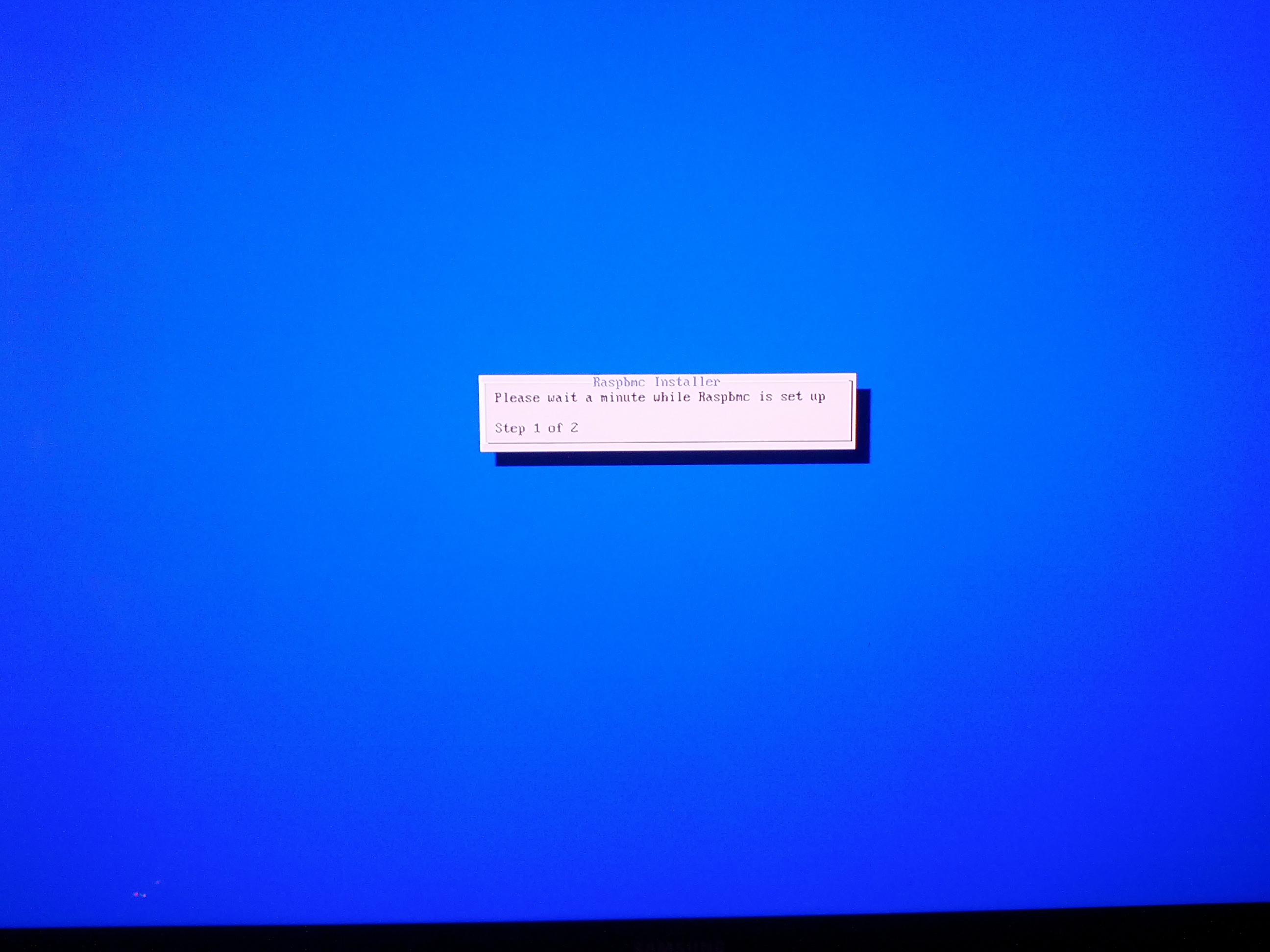
It ran through a ton of downloading, extracting, installing, configuring.. I started to sweat thinking it was stuck in a reboot loop at one point. It didn’t help that the status bar wasn’t aligned right, so I couldn’t even see what it was actually doing – if it was any different from the last time it rebooted.
But I just let it go. had lots of patience. Some of the screens I saw:
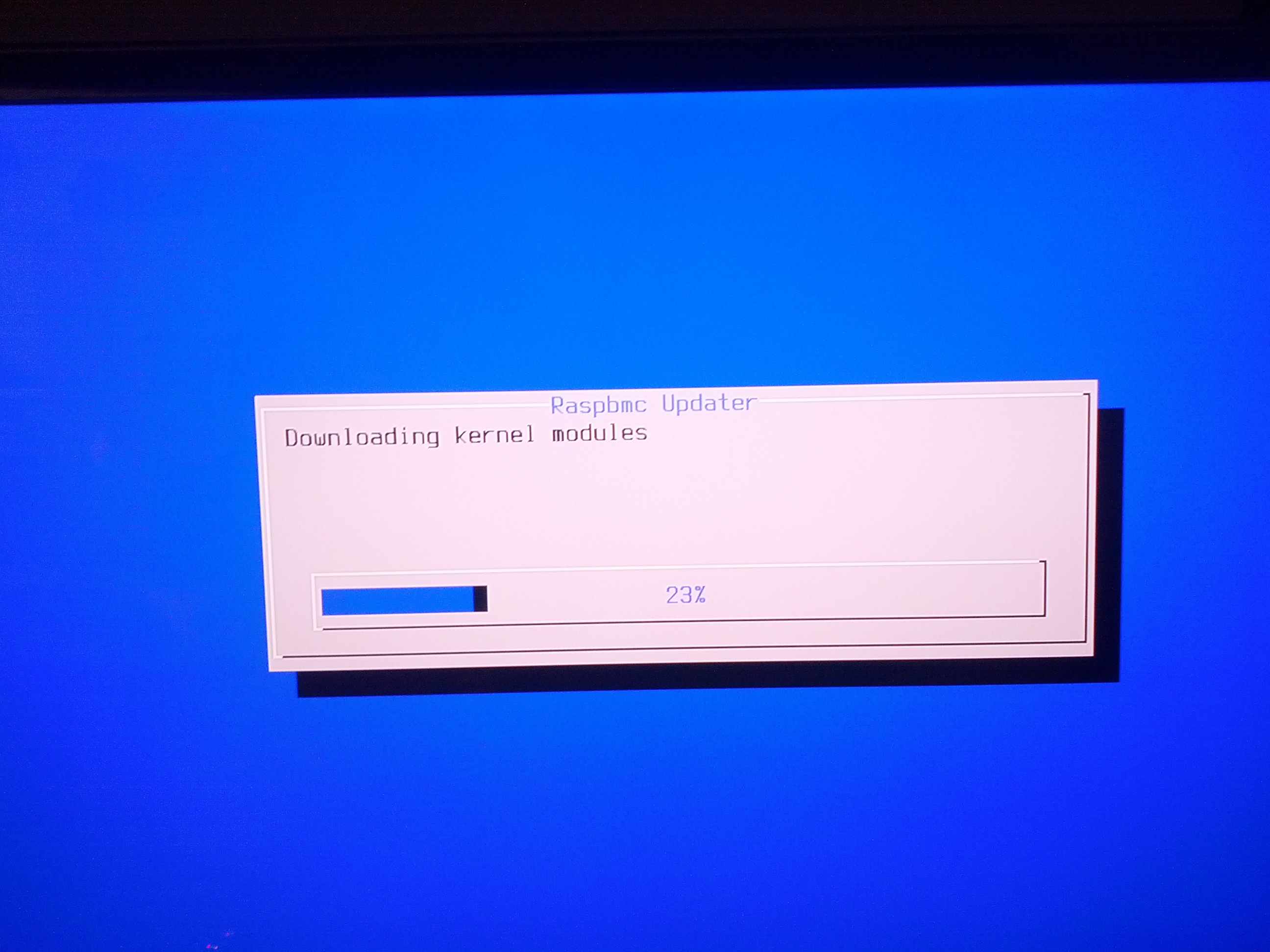
and here is the common one during the last while, with the status bar in the upper right:
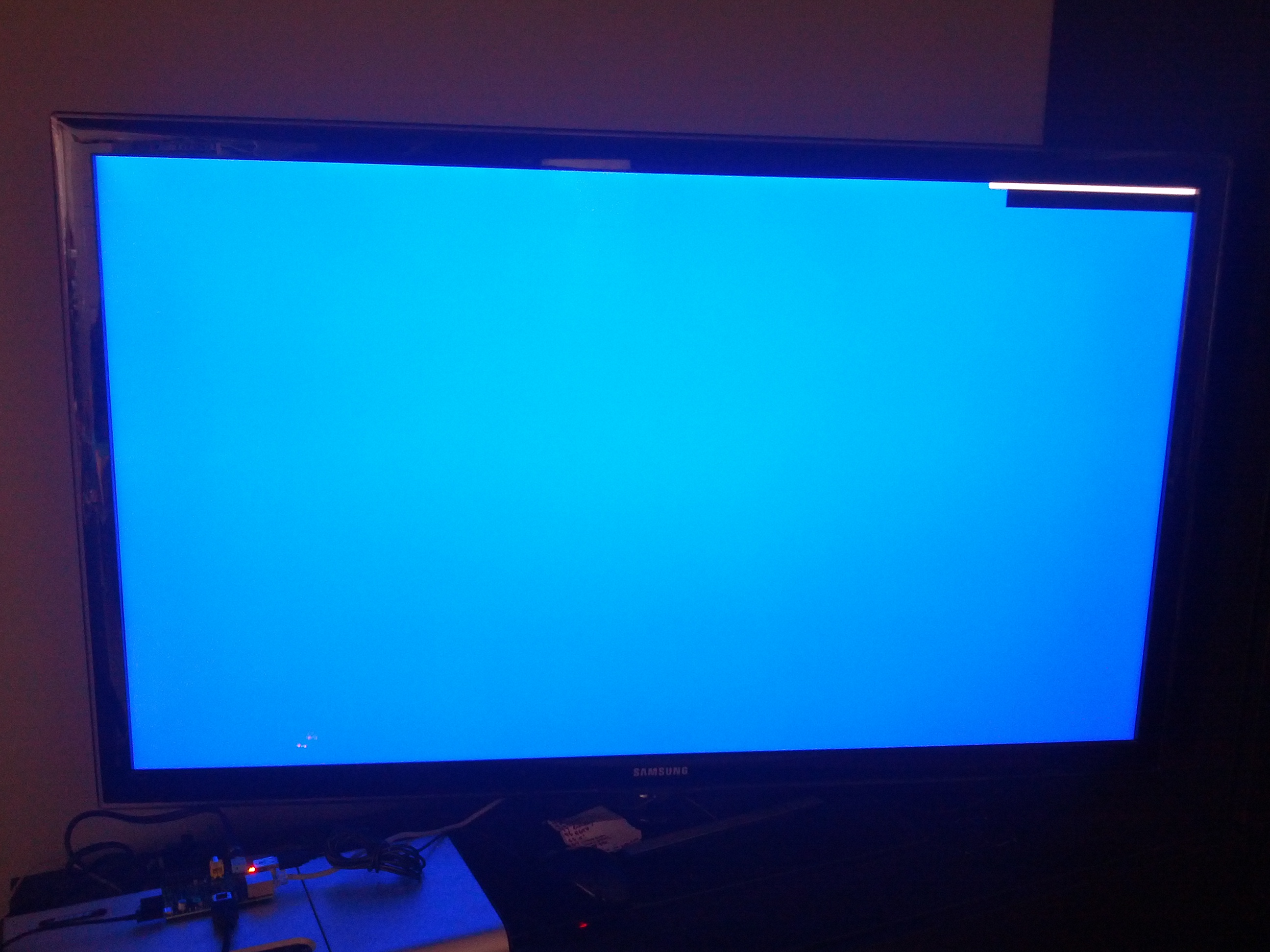
But it did eventually reboot with this:
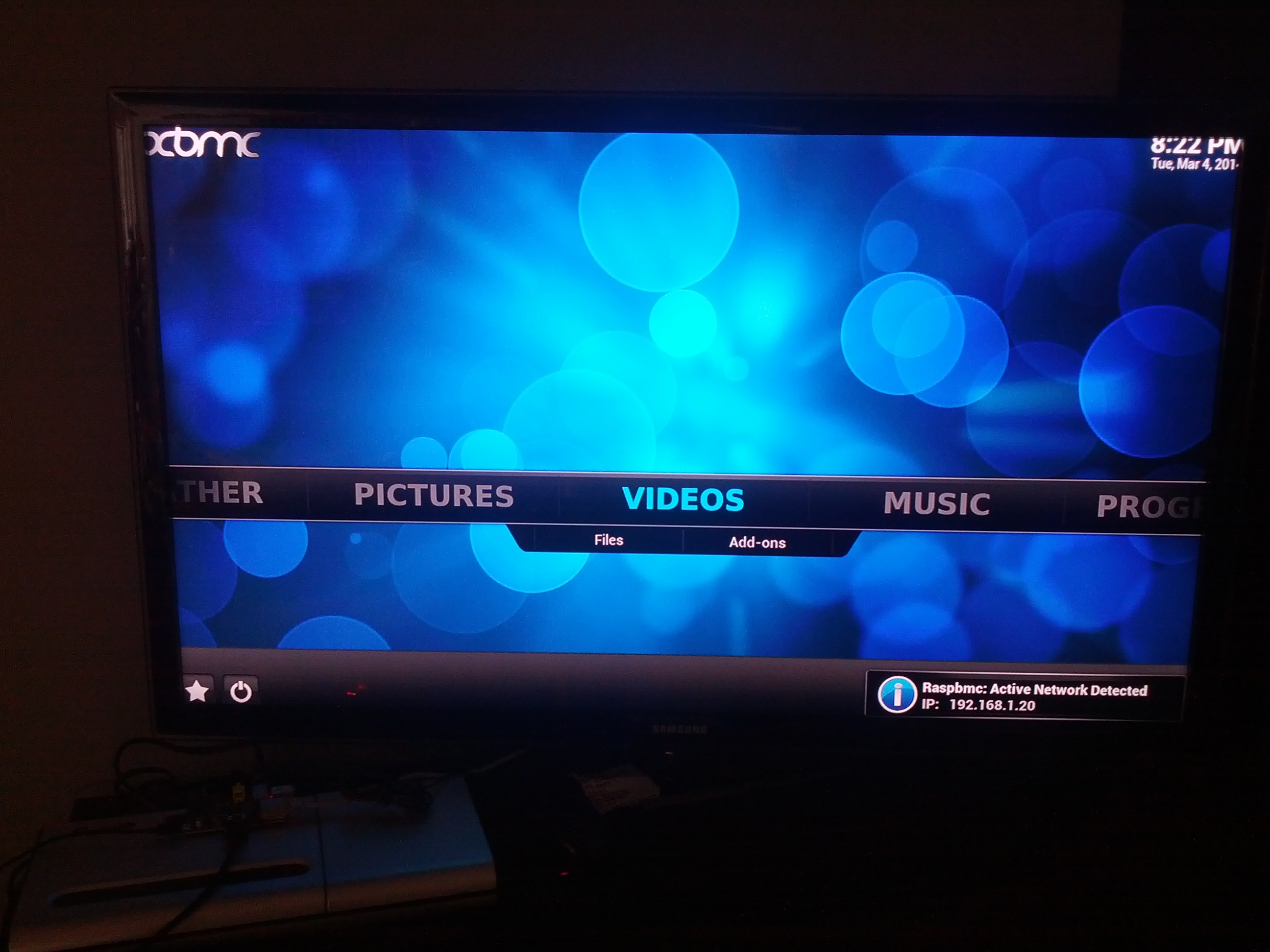
From that point, my TV remote worked to control the Raspberry Pi XBMC user interface. Sweet. That is definitely one good thing about HDMI. They added a wire to send info back to the source. And Samsung thankfully use it with their Anynet+ to send remote control commands.
I then looked up the official XBMC android app for remote control. Quickly got that working as well so my cell phone was controlling it over the LAN. made for much easier typing of sources for the add ons.
Everything was working pretty much perfect.. added the NAV-X program as well.. It has some nice HD movies available.
Found out that even hitting ‘shut down system’ on the XBMC actually turned the TV off too.
Turning it back on doesn’t seem so simple using a wall plug. had to unplug and replug. Likely this will be better once I switch to the TV USB as a power supply.
Another cool thing about the cell phone remote app, is that it also sends texts and call display messages to your tv, so you can see them without looking away.
One downfall I am still looking into – the analogue audio out, which goes to my ancient (but great sounding) Bose Lifestyle system, seems to be extremely low sound for the dialogue, with the sound effects tracks a bit louder. So I can’t use it yet.
Another, is how I will switch to my projector when I want. A quick solution would be an HDMI switch I suppose.. I’ll have to look into that.
I’ll add some of the sites that helped me out with the setup soon..